
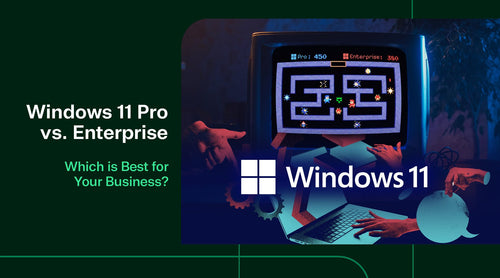
As businesses worldwide transition away from Windows 10, IT decision-makers face a critical juncture. Microsoft offers two primary paths for business computing: Windows 11 Pro and Windows 11 Enterprise.
At a glance, the two operating systems look identical. They share the same user interface, rounded corners, and snap layouts. However, under the hood, they are vastly different tools designed for various scales of operation. Choosing the wrong edition can lead to security vulnerabilities and management headaches for large organizations, as well as unnecessary overhead costs for small businesses.
This guide breaks down the differences in security, device management, licensing, and feature sets to help SMBs, IT managers, and CIOs make informed choices for their infrastructure.

Windows 11 Pro Overview: The Business Standard
Ideal For: Small-to-Medium Businesses (SMBs), Freelancers, Home Offices. Windows 11 Pro is the baseline standard for business computing. If you buy a high-end laptop from Dell, HP, or Lenovo intended for work, this is likely the OS pre-installed on the machine.
Unlike Windows 11 Home, which is designed purely for consumer entertainment and light tasks, Pro is built with work in mind. It bridges the gap between consumer simplicity and corporate requirements.
Key Highlights of Windows 11 Pro:
- BitLocker Encryption: Essential for protecting data if a laptop is lost or stolen.
- Remote Desktop (RDP): Enables users to securely access their work PC from home.
- Hyper-V: Built-in virtualization to run virtual machines (VMs) locally.
- Domain Join & Group Policy: The ability to connect the device to a corporate network and manage basic settings centrally.
The Limitation:
While Windows 11 Pro is powerful, it treats devices somewhat individually. As your organization scales from 10 employees to 100 or 1,000, managing thousands of "Pro" devices individually becomes a logistical nightmare. Furthermore, while it has good security, it lacks the proactive threat hunting capabilities required by regulated industries.

Windows 11 Enterprise Overview: Built for Scale
Ideal For: Mid-to-Large Organizations, Regulated Industries, Remote Teams. Windows 11 Enterprise is not a standalone product you buy off the shelf at a retail store; it is a sophisticated upgrade layer that sits on top of Windows 11 Pro. It is designed specifically for organizations that prioritize security, compliance, and unified management.
When you move to Enterprise, you aren't just paying for an OS; you are paying for a suite of management tools and security fortresses.
Key Highlights of Windows 11 Enterprise:
- Advanced Threat Protection: Goes beyond antivirus to detect sophisticated malware and other advanced threats.
- Deployment Automation: Tools like AppLocker and advanced Group Policy management.
- Virtualization Rights: Enhanced capabilities for Azure Virtual Desktop.
- Long-Term Servicing: Longer support lifecycles (36 months) compared to Pro (24 months), reducing the frequency of forced major updates.
The E3 vs. E5 Distinction:
Enterprise is usually sold via subscription models, primarily E3 and E5.
- Enterprise E3: Includes the core OS features and management tools.
- Enterprise E5: Adds advanced security analytics, specifically Microsoft Defender for Endpoint, offering automated investigation and remediation of threats.

Windows 11 Pro vs Enterprise Full Feature Comparison Chart
To visualize the differences, we have broken down the feature sets into key business categories.
Windows 11 Pro vs Windows 11 Enterprise
| Feature / Attribute | Windows 11 Pro | Windows 11 Enterprise |
|---|---|---|
| Core Business Features | ||
| BitLocker Drive Encryption | ✅ Included | ✅ Included (w/ Modern Management) |
| Mobile Device Management (MDM) | ✅ Basic Support | ✅ Enhanced MDM Capabilities |
| Group Policy / Domain Join | ✅ Included | ✅ Advanced Enterprise Control |
| Remote Desktop | ✅ Host Support | ✅ Enterprise Remote Tools |
| Virtualization (Hyper-V) | ✅ Included | ✅ Enhanced VDI Support |
| Security & Compliance | ||
| Credential Guard | ❌ Not Included | ✅ Included (Protects against identity theft) |
| AppLocker | ❌ Limited | ✅ Full Control (Whitelisting apps) |
| Microsoft Defender for Endpoint | ❌ Baseline Defender only | ✅ Advanced Threat Protection (E5) |
| Device Management | ||
| Deployment | Manual / Basic Images | ✅ Windows Autopilot (Zero-touch) |
| Update Management | Windows Update for Business | ✅ Update Rings & Long-Term Servicing |
| Universal Print | ❌ Limited | ✅ Full Enterprise Support |
| Lifecycle & Hardware | ||
| Support Lifecycle | 24 Months | 36 Months (Enterprise Editions) |
| Max RAM Support | 2TB | 6TB (High-end workstation support) |
| Licensing Model | One-time purchase / OEM | Subscription (Per User) |

Security: Pro vs. Enterprise (The Deciding Factor)
For most IT directors, security is the primary driver for upgrading to an Enterprise solution. While Windows 11 Pro offers excellent baseline security (including TPM 2.0 requirements and standard BitLocker), it relies heavily on the user making the right decisions. Windows 11 Enterprise shifts the control from the user to the IT department.
Credential Guard
This is one of the most significant security differences. Windows 11 Enterprise utilizes virtualization-based security to isolate sensitive information (such as login credentials), allowing only privileged system software to access it. Even if malware infects the OS kernel, it cannot steal the user's identity tokens. Windows 11 Pro lacks this architectural isolation.
Microsoft Defender for Endpoint
In the Pro version, you get Windows Defender Antivirus. It’s good, but it’s reactive. In Enterprise (specifically the E5 license), you gain access to Defender for Endpoint. This is a complete Endpoint Detection and Response (EDR) system. It utilizes AI to analyze behavior, stopping "zero-day" attacks that antivirus databases haven't yet identified.
AppLocker & Application Control
Pro users can generally install whatever they want, unless they are strictly locked down via complex policies. Enterprise features AppLocker, which allows IT admins to whitelist only specific applications. If an employee tries to install a rogue game or unapproved productivity tool, the OS simply blocks it. 5. Device Management & Deployment Differences How much time does your IT team spend setting up new computers?
The Windows 11 Pro Method:
In a purely Pro environment, IT staff often rely on "Golden Images", creating a master hard drive clone and manually flashing it onto every new laptop. Or worse, they manually set up each computer one by one. Managing updates usually involves basic Group Policies, and remote wipes can be difficult if the device isn't connected to the VPN.
The Windows 11 Enterprise Method:
Enterprise shines in Scalability. It is built for the era of hybrid work, where the IT team may never physically touch the laptop.
- Windows Autopilot: This changes the deployment game. You can ship a sealed laptop directly from the manufacturer to the employee's home. When they turn it on and sign in with their corporate email, Windows 11 Enterprise automatically configures itself, downloads necessary apps, and applies security policies. No "imaging" required.
- Endpoint Manager (Intune): While Pro supports basic MDM, Enterprise unlocks the full power of Microsoft Endpoint Manager. You can push specific updates to specific departments, force restarts during non-working hours, and instantly wipe corporate data from a device without deleting personal photos (if using BYOD policies).

Windows 11 Pro vs Enterprise Licensing & Cost Comparison
Understanding the financial impact is vital for budgeting.
Windows 11 Pro:The CAPEX Model
Windows 11 Pro is typically a Capital Expenditure (CapEx). You pay for it once. Typically, the cost is included in the price of the laptop (OEM license). If you buy a retail license, you pay a one-time fee (approx. $200).
- Pros: No recurring monthly bill for the OS.
- Cons: Licenses are tied to the machine (OEM). If you scale up, you must manually purchase more hardware or licenses.
Windows 11 Enterprise: The OPEX Model
Windows 11 Enterprise acts as an Operating Expense (OpEx). It is a subscription service licensed per user, not per device. This is typically included in Microsoft 365 E3 or E5 suites.
Important: You must have a base Windows 11 Pro license to upgrade to Enterprise. You cannot install Enterprise on a machine that has no OS or a "Home" license.
- Pros: A single user can have the Enterprise experience on up to 5 devices. It simplifies compliance and predictable budgeting.
- Cons: It is a forever cost. If you stop paying, the OS features revert to Pro.

Windows 11 Pro vs Enterprise Use-Case Recommendations
Which edition aligns with your organizational profile?
Scenario A: The Local Creative Agency (5–20 Employees)
- Verdict: Windows 11 Pro.
- Why: You likely don't have a dedicated CISO. Your team works in the office or at home. You need BitLocker for security and RDP for access, but you don't need complex deployment tools. The cost of Enterprise E3/E5 may outweigh the benefits.
Scenario B: The Mid-Sized Tech Firm (50–250 Employees)
- Verdict: Windows 11 Enterprise E3.
- Why: You are growing fast. Manually setting up laptops is wasting your IT manager's time. You need Autopilot for onboarding remote hires and Universal Print to manage office hardware without the need for complex print servers.
Scenario C: The Healthcare/Finance Provider (Any Size)
- Verdict: Windows 11 Enterprise E5.
- Why: Compliance is king. You handle HIPAA or GDPR data. You cannot afford a breach. You need Credential Guard and the advanced forensics of Defender for Endpoint to satisfy auditors and insurance requirements.
Scenario D: The Global Remote Workforce
- Verdict: Windows 11 Enterprise.
- Why: You have no physical perimeter. The device is the perimeter. You need the Zero Trust capabilities inherent in Enterprise to ensure that even if a laptop connects from an insecure public Wi-Fi, corporate data remains encrypted and inaccessible to attackers.

So Which Windows 11 Edition Is Best?
Choose Windows 11 Pro if you are a small business where agility and low overhead costs are your top priorities. You trust your employees to be careful, and you manage fewer than 50 devices.
Choose Windows 11 Enterprise if: You view IT as a strategic asset rather than a utility. If you need to enforce security standards, manage devices remotely, and protect sensitive IP against modern cyber threats, the subscription cost of Enterprise pays for itself by preventing a single data breach.
For most growing organizations, the sweet spot is often the Microsoft 365 E3 bundle, which provides Windows 11 Enterprise alongside Office and cloud services, offering a scalable and secure foundation for the future of work.