
Buy Windows 10 ESU Year 1
 |
Details
|
Enrollment Process (Step-by-Step)
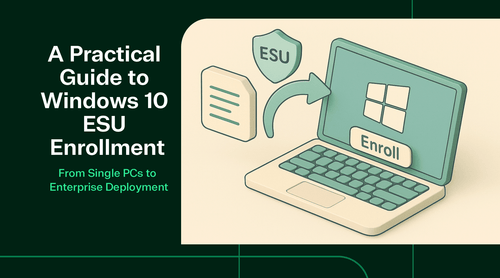
Enrolling a device in the Windows 10 ESU program will differ slightly for individual users versus organizations, but in all cases it’s designed to be a straightforward process. Below, we outline the step-by-step enrollment for a single Windows 10 PC via the built-in method (suitable for individuals or any device using the consumer ESU program). We’ll cover enterprise enrollment in the next section.
Prerequisites
Before trying to enroll, ensure the PC meets basic requirements:
- Windows 10 version 22H2: It must be running Windows 10 version 22H2 (the last feature update). Older versions of Windows 10 cannot enroll until updated.
- Latest cumulative updates installed: It should have the latest cumulative updates installed (as of right before Oct 14, 2025).
- Microsoft Account (MSA) with admin privileges: You need to sign in with a Microsoft Account (MSA) that has administrator privileges on the device. Local accounts are not eligible for enrollment.
- Not domain-joined/MDM-managed for consumer ESU: If you are in an organization, the device should not be domain-joined or managed by Intune/MDM when using consumer ESU; those cases should use the volume licensing method.

Step-by-Step: Consumer Enrollment (Single PC)
- Open Windows Update Settings: On the Windows 10 PC, go to Start > Settings > Update & Security > Windows Update. Ensure you’re connected to the internet.
- Check for ESU Enrollment Prompt: If your device meets the prerequisites, you should see a banner or message about “Windows 10 support is ending” with a link to “Enroll in Extended Security Updates”. Microsoft began rolling this out around the end-of-support date. Click “Enroll now”.
- Sign in with Microsoft Account: If you are currently using a local account on the PC, Windows will prompt you to sign in or switch to a Microsoft account at this stage. Sign in with the MSA that you intend to attach the ESU license to.
-
Choose Enrollment Option: The ESU enrollment wizard will present you with options:
- If you already enabled Windows Backup (settings sync) on this account, it may directly offer enrollment at no cost.
- If not, you may be given choices such as: “Back up my settings to OneDrive” (to get ESU free), “Use Microsoft Rewards points”, or “Purchase for $30”. Select the option you prefer and follow any on-screen prompts (e.g., sign into OneDrive to confirm backup, or enter payment details for purchase via Microsoft Store interface).
-
Confirm Enrollment: After completing the chosen option, the wizard will confirm that your device is now enrolled in ESU. Windows Update might immediately start downloading any post-EOS security update if available.
You can verify enrollment by checking Windows Update settings; it should indicate that the device is receiving Extended Security Updates. Also, in Settings > System > About, it may list that the device is enrolled in ESU, and Windows Update history will show “Security Update for Windows (Extended Security Updates)” entries once patches start arriving.
- Repeat for Additional Devices (if applicable): If you have up to 10 devices using the same Microsoft account, you can go to each and simply sign in with that same account, go to Windows Update, and click “Add device” under the ESU enrollment banner. This will activate ESU on those as well using the existing license (no extra cost if within the 10-device limit). Ensure each additional PC also meets prerequisites (Windows 10 22H2, etc.).
Enrollment for Multiple Enterprise PCs
The above method is optimized for single-PC or small-scale consumer use. In an enterprise scenario, IT admins would typically purchase ESU keys via volume licensing and deploy them. That involves obtaining a Multiple Activation Key (MAK) for ESU from the Volume Licensing Service Center (VLSC) or Microsoft 365 Admin Center, then installing that product key on target machines (via a script, management tool, or manually using the slmgr.vbs command) and activating it, similar to how one would activate Windows or Office volume licenses.
Once the ESU key is installed and activated, those PCs are recognized as eligible for ESU patches. Microsoft has documentation on using tools like WSUS or SCCM to deploy ESU keys and updates in bulk for enterprise environments. (We’ll touch more on enterprise management in the next section.)
Overall, the consumer enrollment process is quite simple—Microsoft has integrated it into the Windows settings to make it as painless as possible for small users. The key hurdles are ensuring you have the right Windows version and an MS account.
If the enrollment option doesn’t appear, there are a few troubleshooting steps (Microsoft and tech forums have noted cases where the banner doesn’t show up immediately). For example, ensuring diagnostic data settings and Windows Update services are enabled can help, as well as running a command to evaluate ESU eligibility. In stubborn cases, contacting Microsoft support might be necessary, but generally the process is smooth.

ESU for Businesses and IT Departments
For IT professionals managing many PCs in an organization, the ESU program requires a slightly different approach. Unlike a single consumer PC that can be enrolled via a GUI, businesses will typically use centralized tools to enable and deploy Extended Security Updates. Here’s what IT departments need to know:
Volume Licensing and Activation
Businesses must obtain ESU through their Microsoft licensing agreements. This could be via an Enterprise Agreement, Microsoft Product & Services Agreement (for volume licensing), or even Cloud Solution Provider (CSP) channels for smaller orgs. Once purchased, the organization is provided with one or more ESU activation keys (similar to a Windows product key).
Microsoft documentation indicates these keys are visible in the Microsoft 365 Admin Center’s product details or in the VLSC portal, though they only become valid at the moment Windows 10 reaches end-of-support.
To activate ESU on a Windows 10 PC, the admin needs to install the ESU license key on the machine. Typically this is done by running the Windows slmgr (Software Licensing Manager) command. For example:
slmgr /ipk <ESU-MAK-Key>
slmgr /ato
This installs the ESU key and activates it online with Microsoft’s activation servers. (In disconnected environments, phone activation is also possible.) Once the key is activated, the system is flagged as eligible for ESU updates.
Management via WSUS/Configuration Manager
After activation, delivering the updates can be done through normal channels. If your organization uses WSUS (Windows Server Update Services) or Microsoft Endpoint Configuration Manager (SCCM/MECM) to manage patches, Windows 10 ESU updates will appear like any other updates for Windows 10—except they will be classified, and only applicable to ESU-activated devices.
Admins should ensure that their update catalogs are set to include “Extended Security Updates” for Windows 10. Microsoft has provided guidance for WSUS to continue syncing Windows 10 updates post-EOS for ESU customers. Essentially, once the key is in place, patching proceeds via your existing update workflow—you can approve and deploy ESU patches through WSUS or Configuration Manager as with any monthly update.
Microsoft Intune (Endpoint Manager)
If you use cloud management, devices enrolled in Intune can also receive ESU updates. Intune doesn’t directly manage the license activation (you’d still need to deploy the key via scripting or a custom configuration profile, since Intune can run PowerShell scripts on devices). After that, you can use Intune’s Update Rings or Windows Update for Business policies to make sure the devices continue to get quality updates (which, in the ESU period, are security-only updates).
Monitoring and Compliance
IT departments should keep track of which devices are covered under ESU. This might include maintaining an inventory of activated ESU licenses (e.g., slmgr can be used to query license status).
Microsoft’s documentation suggests that no new license purchase is necessary for Year 2 and Year 3 beyond simply buying the next year’s keys and repeating the activation—but remember, if you skip Year 1 and try to buy Year 2, you’ll be charged for both years. So managing renewal is crucial. Mark calendar reminders well in advance of yearly expirations (in 2026 and 2027) to renew the ESU if your org still needs it.
Integration with Patch Pipelines
Enterprises might integrate ESU into their normal patch cycle. For example, treat ESU updates as another feed of patches to test and deploy. It’s wise to test ESU patches on a subset of machines first, as with any update, to ensure they don’t have unexpected side effects on legacy applications.
Microsoft has indicated that ESU patches are tested to ensure compatibility only with Windows 10 22H2, as that’s the only supported configuration post-2025.
Enterprise Scenarios and Exceptions
Some enterprise environments might have Windows 10 machines that cannot easily connect to the internet (and thus to activation servers). In such cases, Microsoft provides MAK keys that support offline activation.
Additionally, organizations using Azure services get a bonus: Windows 10 virtual machines on Azure or Windows 365 Cloud PCs automatically receive ESU for free. This might influence a company’s strategy (for example, migrating some older workloads to Azure Virtual Desktop where they can stay on Windows 10 and still be patched without extra cost).
Group Policy/Registry Considerations
The ESU enrollment for consumers is handled via the Settings UI, but enterprise admins can also toggle ESU eligibility via registry or policy if needed (though the primary gating factor is the license activation). There were some known registry tweaks (used in Windows 7 ESU era) but for Windows 10, simply applying the key is sufficient.

Summary
In summary, businesses handle ESU through normal IT management practices: you buy licenses, activate them on each device (which can be automated), and then continue patching through your update management system as usual. Microsoft’s aim was to make ESU as non-disruptive as possible for IT pros—aside from the licensing step, everything else (receiving updates, monitoring compliance) leverages existing Windows Update infrastructures.
One more important angle: Communication and user impact. On managed PCs, end-users might have seen a notification about Windows 10 end-of-support. Once ESU is in place, it’s good to reassure users that their device will still get critical updates for now. However, IT should also communicate that this is temporary and encourage users (or plan) to move to new hardware/OS in the future.
Often, IT departments will use ESU as part of a phased migration plan, e.g., Year 1 ESU while 50% of PCs are upgraded, Year 2 ESU only for the remaining 20% legacy PCs, etc., until all are off Windows 10.